We’ve all been there.
You copy a paragraph from another document, paste it into the document you’re working on and suddenly the formatting goes crazy.
The font changes. The spacing looks different. The paragraph refuses to behave the way you expect.
And you have no idea why.
When this happens, one of the first things I recommend doing is turning on Word’s Show/Hide feature.
You’ll find the Show/Hide ¶ button on the Home tab of the Ribbon, in the Paragraph group.
Once you turn it on, Word reveals the formatting characters that are normally hidden from view.
And suddenly, you can start to see what is actually happening inside your document.
What is the ¶ symbol?
The ¶ symbol is called a pilcrow, or paragraph mark.
When Show/Hide is turned on, you’ll see a pilcrow at the end of each paragraph.
That paragraph mark is more important than it looks.
In Word, the paragraph mark carries the paragraph-level formatting associated with the paragraph immediately before it. That can include things such as alignment, indentation, spacing and other paragraph settings.
This is one reason formatting can sometimes behave unexpectedly when you copy content from one document into another. You may be bringing formatting from the source document along with the text.
Being able to see the paragraph marks makes it much easier to work out what Word is doing.
Starting a New Paragraph
Every time you press:
Enter
you create a new paragraph.
Word inserts a paragraph mark at the end of the previous paragraph and moves your cursor to the new paragraph below.
With Show/Hide turned on, you can actually see those paragraph marks.
This is particularly useful when someone has repeatedly pressed Enter to create space in a document—you can immediately see all those extra empty paragraphs.
Starting a New Line Without Starting a New Paragraph
Sometimes you want to move onto a new line without creating a completely new paragraph.
For that, use:
Shift + Enter
This inserts a manual line break.
With Show/Hide turned on, you’ll see a different symbol marking the line break rather than a pilcrow (see below).
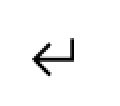
The important distinction is that the text before and after the manual line break remains part of the same paragraph.
That can be extremely useful when you want another line but still want the text to share the same paragraph formatting.
Starting a New Page
Another habit I regularly see is people pressing:
Enter
Enter
Enter
Enter
Enter…
until the text eventually appears on the next page.
Please don’t do that. 😄
If you want the next text to begin on a new page, insert a manual page break instead:
Ctrl + Enter
With Show/Hide turned on, Word displays the page break clearly inside the document.
This tells Word:
Start the following content on a new page.
The advantage is that the page break remains intentional even when the surrounding text changes.
If you simply use a collection of empty paragraphs to push a heading onto the next page, the layout can change as soon as someone adds or removes text earlier in the document.
Suddenly, the heading you carefully positioned at the top of the next page may be sitting halfway down a page—or stranded at the bottom of the previous one.
Very frustrating.
And completely avoidable.
Why Show/Hide is one of the first things I turn on
Show/Hide allows you to see the structure that Word normally keeps hidden.
Depending on your document, you may see:
- paragraph marks
- spaces
- tabs
- manual line breaks
- page breaks
- section breaks
When a document is behaving strangely, those hidden characters often provide the first clue as to why.
I like to think of Show/Hide as:
Turning the lights on before you start trying to fix the problem.
The document may still need some work—but at least you can now see what you’re dealing with.
For more practical Microsoft Word and Excel tips, keep following along.
And if you’re in the legal profession and want to learn how to use Word and Excel more effectively for the work lawyers actually do, you can register your interest in Office Wizards here:
Join the Office Wizards waitlist
There’s usually a better way. You just need to know it exists.
Leave a Reply
You must be logged in to post a comment.